M365.FM - Modern work, security, and productivity with Microsoft 365 · Today · 16 min
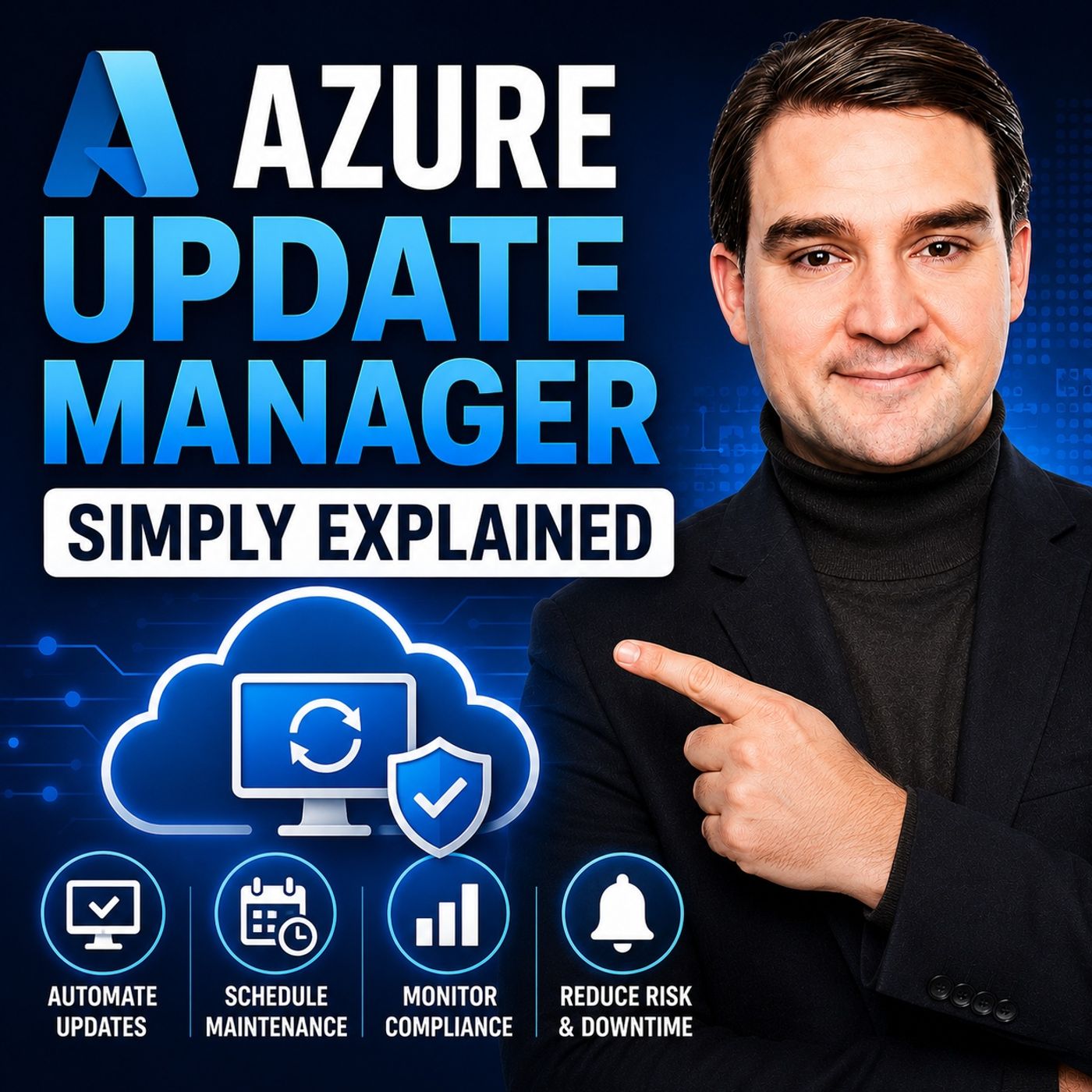
Azure Update Manager - Simply Explained
0:00-16:13
transcript
show notes
Azure Update Manager brings operating system patching into one central Azure-native service. Instead of managing updates through scattered tools, separate server lists, and disconnected reports, it gives IT teams a common place to assess missing updates, schedule maintenance, install patches, and verify what actually happened afterward. The important question isn't simply whether patching started. It's whether every required machine was successfully updated, which systems failed, which servers still require a restart, and where someone needs to take action.
ㅤ
WHAT IS AZURE UPDATE MANAGER?
Azure Update Manager is a service for checking, scheduling, installing, and tracking operating system updates across servers. Its primary focus is operating system updates for Windows and Linux rather than managing every application installed on every machine. The objective is to provide one place where administrators can understand the patching state of their server environment and manage the work required to keep those systems current.
ㅤ
MANAGING AZURE VIRTUAL MACHINES
Azure Update Manager can manage Windows and Linux Azure virtual machines. It also supports virtual machine scale sets, where multiple similar virtual machines can be created or removed automatically as demand changes. Instead of treating every VM as an isolated patching problem, administrators can establish a more consistent update process across groups of machines.
ㅤ
PATCHING SERVERS OUTSIDE AZURE
Not every enterprise server runs inside Azure. Organizations frequently have servers in their own data centers, branch offices, or other cloud environments. Azure Arc provides the connection between these machines and Azure management. Once an external server is connected through Azure Arc, Azure Update Manager can include it alongside Azure virtual machines in the same patching environment. The server doesn't move into Azure. Azure Arc simply makes it manageable through Azure services.
ㅤ
ONE CENTRAL PATCHING VIEW
Combining Azure VMs and Azure Arc-enabled servers provides administrators with a more centralized view of patching. Teams can identify machines with missing updates, review patch status, investigate previous update runs, and see which machines comply with expected patching requirements. This doesn't remove ownership from individual infrastructure and application teams. Instead, it makes problems easier to identify and assign. When an update fails, teams have a common place to begin investigating.
ㅤ
ASSESSMENT: WHAT DOES EACH SERVER NEED?
Before installing updates, you need to understand what is actually missing. Azure Update Manager can assess machines and create a current picture of pending operating system updates. For most managed machines, automatic assessment occurs every 24 hours. This matters because patch status changes continuously. A server that was fully patched yesterday might have new updates available today, while another machine might have completed its updates and no longer require attention.
ㅤ
WINDOWS AND LINUX UPDATES
For Windows servers, assessment identifies applicable operating system updates. For Linux servers, Azure Update Manager checks available package updates from the configured update sources. The underlying operating systems handle updates differently, but the management question remains the same: which updates does this server still need?
ㅤ
SECURITY AND CRITICAL UPDATES
Not every update has the same priority. Security updates address known security weaknesses, while critical updates typically resolve serious system problems. Other updates may introduce broader functionality or changes to components that business applications depend on. This means patch management isn't simply about installing everything immediately. Organizations need processes that distinguish urgent security remediation from changes requiring additional testing.
ㅤ
UNDERSTANDING PATCH COMPLIANCE
Azure Update Manager provides a compliance view across managed machines. For example, an organization might have 100 servers, with 92 fully updated and eight still requiring attention. The important information isn't simply the 92 percent compliance figure. The real work is understanding why those eight servers remain noncompliant. One might have failed to reach its update source. Another could require a restart. Another might need additional investigation before the update can safely be installed. The dashboard identifies where to investigate. It doesn't eliminate the need for administrators to understand what happened.
ㅤ
MAINTENANCE WINDOWS
Knowing that an update exists doesn't tell you when it should be installed. A maintenance window defines when patching can safely take place. This is particularly important for production servers because some updates require restarts. Installing updates without considering business usage could interrupt applications, processes, databases, or users. Maintenance windows provide a controlled period for performing this work.
ㅤ
ONE-TIME AND RECURRING PATCHING
Azure Update Manager supports both urgent and recurring patching scenarios. A one-time update job can be used when an important security vulnerability needs to be addressed before the normal maintenance cycle. Recurring schedules can support regular patching operations, such as monthly maintenance after Microsoft's normal Windows update releases. Instead of rebuilding the same patching plan every month, teams can establish a repeatable schedule.
ㅤ
CONTROLLING WHICH UPDATES ARE INSTALLED
Within a patching schedule, administrators can determine which categories of updates should be included. Many organizations prioritize security and critical updates because they typically address the most immediate risks. Other update categories can be introduced according to the organization's testing and change-management processes. The objective isn't to install everything simply because an update exists. The objective is to decide what belongs in each patching cycle.
ㅤ
MANAGING REBOOTS
Some operating system updates don't become fully effective until the server restarts. For lower-risk systems, organizations might allow automatic restarts when required, provided they occur within the approved maintenance window. Critical business systems may require tighter control. A database, business application, or system with strict availability requirements might require the service owner to approve and coordinate the restart separately. Update installation and reboot strategy therefore need to be considered together.
ㅤ
AUTOMATIC VM GUEST PATCHING
Azure Update Manager supports automatic VM guest patching for supported Azure virtual machines. Azure can download and install operating system updates inside the VM according to the selected patching approach. This can reduce repetitive administrative work, but automation doesn't eliminate the need to understand and test the applications running on those servers.
ㅤ
HOTPATCHING
Hotpatching can reduce the number of required server restarts. On supported Windows versions and supported Azure virtual machines, certain security updates can be installed without rebooting the machine. This can be valuable for workloads where availability is particularly important. However, hotpatching doesn't eliminate maintenance windows. It only applies to supported systems and specific updates, and some changes will still require traditional restarts.
ㅤ
BUILD PATCH RINGS
A safer patching strategy moves updates through stages. Development and test systems can receive updates first. This gives teams an opportunity to identify application compatibility problems or unexpected behavior. After successful testing, updates can move to a small production pilot group. Only after those machines have been validated should the update reach the wider production environment. Separate maintenance windows for development, test, pilot, and production systems reduce the risk of one problematic update affecting the entire environment simultaneously.
ㅤ
UPDATE HISTORY AND VERIFICATION
A completed patch schedule doesn't necessarily mean every machine was successfully updated. One server might fail during installation. Another might require a restart. A third might never reach its configured update source. Azure Update Manager keeps update history so administrators can review what happened during individual update runs. This transforms patching from "we ran the job" into a more useful question: which servers still need attention?
ㅤ
AZURE RESOURCE GRAPH
Azure Update Manager uses Azure Resource Graph for compliance information. Azure Resource Graph provides a way to query information across managed Azure resources, allowing Update Manager to build centralized views of update and compliance status. For administrators, the important result is the ability to investigate patching status across many resources without manually checking every individual machine.
ㅤ
LOG ANALYTICS IS NO LONGER REQUIRED
One important difference from the older patching architecture is that a Log Analytics workspace isn't required for the core Azure Update Manager service. Azure Monitor and Log Analytics can still be valuable when organizations need alerts, deeper investigation, or additional historical analysis. However, they are optional components rather than mandatory foundations for the basic Update Manager workflow.
Become a supporter of this podcast: https://www.spreaker.com/podcast/m365-fm-modern-work-security-and-productivity-with-microsoft-365--6704921/support.
ㅤ
WHAT IS AZURE UPDATE MANAGER?
Azure Update Manager is a service for checking, scheduling, installing, and tracking operating system updates across servers. Its primary focus is operating system updates for Windows and Linux rather than managing every application installed on every machine. The objective is to provide one place where administrators can understand the patching state of their server environment and manage the work required to keep those systems current.
ㅤ
MANAGING AZURE VIRTUAL MACHINES
Azure Update Manager can manage Windows and Linux Azure virtual machines. It also supports virtual machine scale sets, where multiple similar virtual machines can be created or removed automatically as demand changes. Instead of treating every VM as an isolated patching problem, administrators can establish a more consistent update process across groups of machines.
ㅤ
PATCHING SERVERS OUTSIDE AZURE
Not every enterprise server runs inside Azure. Organizations frequently have servers in their own data centers, branch offices, or other cloud environments. Azure Arc provides the connection between these machines and Azure management. Once an external server is connected through Azure Arc, Azure Update Manager can include it alongside Azure virtual machines in the same patching environment. The server doesn't move into Azure. Azure Arc simply makes it manageable through Azure services.
ㅤ
ONE CENTRAL PATCHING VIEW
Combining Azure VMs and Azure Arc-enabled servers provides administrators with a more centralized view of patching. Teams can identify machines with missing updates, review patch status, investigate previous update runs, and see which machines comply with expected patching requirements. This doesn't remove ownership from individual infrastructure and application teams. Instead, it makes problems easier to identify and assign. When an update fails, teams have a common place to begin investigating.
ㅤ
ASSESSMENT: WHAT DOES EACH SERVER NEED?
Before installing updates, you need to understand what is actually missing. Azure Update Manager can assess machines and create a current picture of pending operating system updates. For most managed machines, automatic assessment occurs every 24 hours. This matters because patch status changes continuously. A server that was fully patched yesterday might have new updates available today, while another machine might have completed its updates and no longer require attention.
ㅤ
WINDOWS AND LINUX UPDATES
For Windows servers, assessment identifies applicable operating system updates. For Linux servers, Azure Update Manager checks available package updates from the configured update sources. The underlying operating systems handle updates differently, but the management question remains the same: which updates does this server still need?
ㅤ
SECURITY AND CRITICAL UPDATES
Not every update has the same priority. Security updates address known security weaknesses, while critical updates typically resolve serious system problems. Other updates may introduce broader functionality or changes to components that business applications depend on. This means patch management isn't simply about installing everything immediately. Organizations need processes that distinguish urgent security remediation from changes requiring additional testing.
ㅤ
UNDERSTANDING PATCH COMPLIANCE
Azure Update Manager provides a compliance view across managed machines. For example, an organization might have 100 servers, with 92 fully updated and eight still requiring attention. The important information isn't simply the 92 percent compliance figure. The real work is understanding why those eight servers remain noncompliant. One might have failed to reach its update source. Another could require a restart. Another might need additional investigation before the update can safely be installed. The dashboard identifies where to investigate. It doesn't eliminate the need for administrators to understand what happened.
ㅤ
MAINTENANCE WINDOWS
Knowing that an update exists doesn't tell you when it should be installed. A maintenance window defines when patching can safely take place. This is particularly important for production servers because some updates require restarts. Installing updates without considering business usage could interrupt applications, processes, databases, or users. Maintenance windows provide a controlled period for performing this work.
ㅤ
ONE-TIME AND RECURRING PATCHING
Azure Update Manager supports both urgent and recurring patching scenarios. A one-time update job can be used when an important security vulnerability needs to be addressed before the normal maintenance cycle. Recurring schedules can support regular patching operations, such as monthly maintenance after Microsoft's normal Windows update releases. Instead of rebuilding the same patching plan every month, teams can establish a repeatable schedule.
ㅤ
CONTROLLING WHICH UPDATES ARE INSTALLED
Within a patching schedule, administrators can determine which categories of updates should be included. Many organizations prioritize security and critical updates because they typically address the most immediate risks. Other update categories can be introduced according to the organization's testing and change-management processes. The objective isn't to install everything simply because an update exists. The objective is to decide what belongs in each patching cycle.
ㅤ
MANAGING REBOOTS
Some operating system updates don't become fully effective until the server restarts. For lower-risk systems, organizations might allow automatic restarts when required, provided they occur within the approved maintenance window. Critical business systems may require tighter control. A database, business application, or system with strict availability requirements might require the service owner to approve and coordinate the restart separately. Update installation and reboot strategy therefore need to be considered together.
ㅤ
AUTOMATIC VM GUEST PATCHING
Azure Update Manager supports automatic VM guest patching for supported Azure virtual machines. Azure can download and install operating system updates inside the VM according to the selected patching approach. This can reduce repetitive administrative work, but automation doesn't eliminate the need to understand and test the applications running on those servers.
ㅤ
HOTPATCHING
Hotpatching can reduce the number of required server restarts. On supported Windows versions and supported Azure virtual machines, certain security updates can be installed without rebooting the machine. This can be valuable for workloads where availability is particularly important. However, hotpatching doesn't eliminate maintenance windows. It only applies to supported systems and specific updates, and some changes will still require traditional restarts.
ㅤ
BUILD PATCH RINGS
A safer patching strategy moves updates through stages. Development and test systems can receive updates first. This gives teams an opportunity to identify application compatibility problems or unexpected behavior. After successful testing, updates can move to a small production pilot group. Only after those machines have been validated should the update reach the wider production environment. Separate maintenance windows for development, test, pilot, and production systems reduce the risk of one problematic update affecting the entire environment simultaneously.
ㅤ
UPDATE HISTORY AND VERIFICATION
A completed patch schedule doesn't necessarily mean every machine was successfully updated. One server might fail during installation. Another might require a restart. A third might never reach its configured update source. Azure Update Manager keeps update history so administrators can review what happened during individual update runs. This transforms patching from "we ran the job" into a more useful question: which servers still need attention?
ㅤ
AZURE RESOURCE GRAPH
Azure Update Manager uses Azure Resource Graph for compliance information. Azure Resource Graph provides a way to query information across managed Azure resources, allowing Update Manager to build centralized views of update and compliance status. For administrators, the important result is the ability to investigate patching status across many resources without manually checking every individual machine.
ㅤ
LOG ANALYTICS IS NO LONGER REQUIRED
One important difference from the older patching architecture is that a Log Analytics workspace isn't required for the core Azure Update Manager service. Azure Monitor and Log Analytics can still be valuable when organizations need alerts, deeper investigation, or additional historical analysis. However, they are optional components rather than mandatory foundations for the basic Update Manager workflow.
Become a supporter of this podcast: https://www.spreaker.com/podcast/m365-fm-modern-work-security-and-productivity-with-microsoft-365--6704921/support.
links1