Skip to content
Artwork for CyberCode Academy
CyberCode Academy Β· August 16 Β· 23 min

Course 40 - Web Scraping with Python | Episode 36: Comprehensive Element Locating and Advanced Webpage Navigation

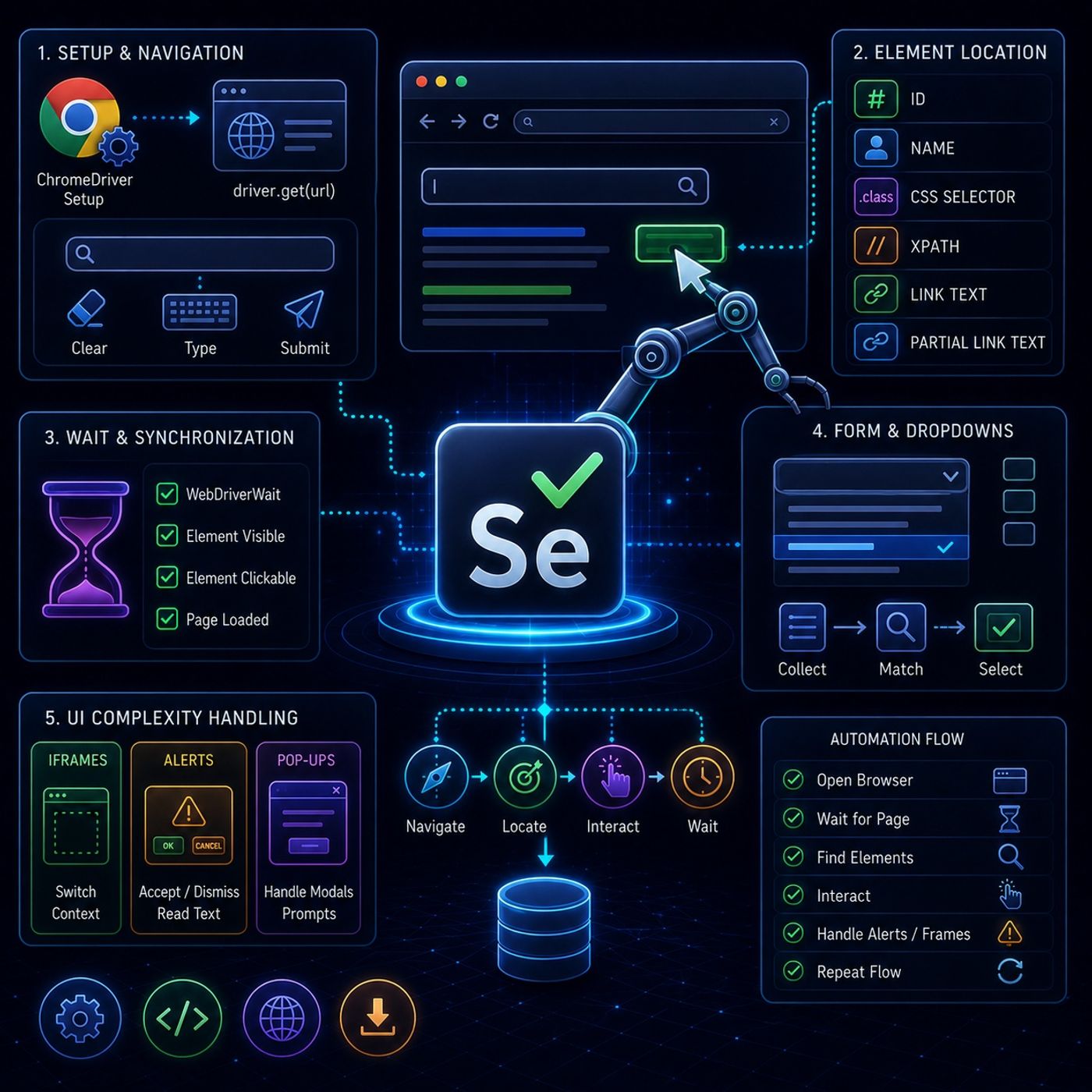
This tutorial series is basically showing how Selenium moves from β€œclicking elements” into real-world browser automation, where pages are messy, slow, and full of UI traps.🧭 1. Core Setup + Basic NavigationEverything starts with controlling the browser: ChromeDriver setup Acts as the bridge between Python and Chrome driver.get(url) Opens a webpage inside the automated browser session Once the page loads, the first interactions usually target simple inputs like search bars.✍️ Basic interaction flowTypical steps: locate input field clear existing text send new text using keyboard input submit or trigger search This is the foundation of all automation flows.🎯 2. Element Location (the real core skill)The series reinforces multiple ways to find elements depending on page structure:πŸ†” ID (best case) fastest and most stable 🏷️ Name common in forms (login, search, signup) 🎨 CSS Selectors uses class-based targeting flexible and widely used in real projects 🧭 XPath most powerful option works even when HTML is messy or missing IDs/classes πŸ”— Links exact link text partial link text Useful for navigation between pages. βš™οΈ 3. Handling Real Web Behavior (Dynamic Pages)This is where Selenium becomes β€œreal automation” instead of simple scripting.⏳ WebDriverWait (critical concept)Modern websites load content asynchronously, so elements might not exist immediately.Instead of failing instantly, Selenium can: wait until element appears wait until element becomes clickable pause execution until condition is met This prevents most β€œelement not found” errors.🧾 4. Complex Form HandlingForms are not just text inputs β€” they include dropdowns, validations, and dynamic fields.πŸ“‹ Dropdown strategyInstead of selecting blindly: collect all elements loop through them match desired value click selection This makes automation resilient when UI order changes.🧱 5. Handling Real UI ComplexityπŸͺŸ iframes embedded pages inside pages Selenium cannot access them directly must switch context before interacting ⚠️ Pop-ups / Alerts / PromptsYou can: accept (OK) dismiss (Cancel) read alert text These often block automation flows if not handled.🧠 Key InsightThis module is really about this transition:from β€œclicking elements” β†’ to β€œcontrolling unpredictable browser behavior”Because real websites are not static: they load slowly they restructure DOM dynamically they interrupt workflows with modals and alerts ⚑ Summary Mental ModelThink of Selenium automation like this: Open browser Wait for page stability Find elements reliably (ID/CSS/XPath) Interact carefully (click/type/select) Handle interruptions (alerts, iframes, delays) Repeat across navigation flows You can listen and download our episodes for free on more than 10 different platforms: https://linktr.ee/cybercode_academy

0:00-23:49

transcript

No transcript β€” this publisher did not publish one.

show notes

This tutorial series is basically showing how Selenium moves from β€œclicking elements” into real-world browser automation, where pages are messy, slow, and full of UI traps.🧭 1. Core Setup + Basic NavigationEverything starts with controlling the browser:
  • ChromeDriver setup
    • Acts as the bridge between Python and Chrome
  • driver.get(url)
    • Opens a webpage inside the automated browser session
Once the page loads, the first interactions usually target simple inputs like search bars.✍️ Basic interaction flowTypical steps:
  • locate input field
  • clear existing text
  • send new text using keyboard input
  • submit or trigger search
This is the foundation of all automation flows.🎯 2. Element Location (the real core skill)The series reinforces multiple ways to find elements depending on page structure:πŸ†” ID (best case)
  • fastest and most stable
🏷️ Name
  • common in forms (login, search, signup)
🎨 CSS Selectors
  • uses class-based targeting
  • flexible and widely used in real projects
🧭 XPath
  • most powerful option
  • works even when HTML is messy or missing IDs/classes
πŸ”— Links
  • exact link text
  • partial link text
    Useful for navigation between pages.
βš™οΈ 3. Handling Real Web Behavior (Dynamic Pages)This is where Selenium becomes β€œreal automation” instead of simple scripting.⏳ WebDriverWait (critical concept)Modern websites load content asynchronously, so elements might not exist immediately.Instead of failing instantly, Selenium can:
  • wait until element appears
  • wait until element becomes clickable
  • pause execution until condition is met
This prevents most β€œelement not found” errors.🧾 4. Complex Form HandlingForms are not just text inputs β€” they include dropdowns, validations, and dynamic fields.πŸ“‹ Dropdown strategyInstead of selecting blindly:
  • collect all elements
  • loop through them
  • match desired value
  • click selection
This makes automation resilient when UI order changes.🧱 5. Handling Real UI ComplexityπŸͺŸ iframes
  • embedded pages inside pages
  • Selenium cannot access them directly
  • must switch context before interacting
⚠️ Pop-ups / Alerts / PromptsYou can:
  • accept (OK)
  • dismiss (Cancel)
  • read alert text
These often block automation flows if not handled.🧠 Key InsightThis module is really about this transition:from β€œclicking elements” β†’ to β€œcontrolling unpredictable browser behavior”Because real websites are not static:
  • they load slowly
  • they restructure DOM dynamically
  • they interrupt workflows with modals and alerts
⚑ Summary Mental ModelThink of Selenium automation like this:
  1. Open browser
  2. Wait for page stability
  3. Find elements reliably (ID/CSS/XPath)
  4. Interact carefully (click/type/select)
  5. Handle interruptions (alerts, iframes, delays)
  6. Repeat across navigation flows


You can listen and download our episodes for free on more than 10 different platforms:
https://linktr.ee/cybercode_academy
links1